Q
U
I
S
I
T
I
V
E
Loading

Blog Detail
07
Oct
🤖 Is Your Work Device Spying on You? 5 Silent Signs of Malware (And How to Stop It)
You’re working on a report.
Your laptop feels… off.
Sluggish. Overheating. Sending messages you didn’t type.
No virus alert popped up.
No red banners.
Just something feels wrong.
Is it just aging hardware?
Or is your device already compromised?
The truth: Modern malware doesn’t scream — it whispers.
It hides in plain sight, mimicking normal behavior while stealing data, mining cryptocurrency, or preparing for a larger attack.
And according to the Ministry of Home Affairs, over 36 lakh cybercrime complaints were filed in India in 2024 — many starting with unnoticed malware infections on work devices.
In this guide, we’ll show you 5 silent signs your device may be infected — and what to do before it turns into a full-blown breach.
🔍 Why Malware Is No Longer Obvious
Gone are the days when malware meant flashing pop-ups and frozen screens.
Today’s threats are stealthy:
- Fileless malware that lives in memory, not storage
- Rootkits that hide from antivirus software
- Infostealers that quietly upload credentials to remote servers
They don’t crash your system — they use it — often without triggering any alerts.
That’s why detection starts with user awareness, not just tech tools.
🚨 5 Silent Signs Your Work Device Is Compromised
You don’t need a security degree to spot danger. Just pay attention to these everyday red flags.
🔹 1. Sudden Sluggish Performance
Symptoms:
- Apps take forever to open
- Cursor lags behind your movement
- Simple tasks freeze or time out
💡 What’s really happening?
Malware runs hidden processes in the background — logging keystrokes, encrypting files, or mining cryptocurrency (cryptojacking). This eats up CPU, RAM, and bandwidth — slowing everything down.
✅ Ask yourself:
Did performance drop after clicking a link or downloading a file? That’s a major clue.
🛡️ Action Step:
Run a full system scan using endpoint protection. If unsure — report to IT immediately.
🔹 2. Pop-Ups That Won’t Quit (Even Offline)
Alerts like:
“Your System Is Infected!”
“Call Microsoft Support: 1800-XXX-XXXX”
“Activate Antivirus Now!”
🛑 Here’s the truth:
Microsoft, Apple, or Google will NEVER call you about a virus.
These fake alerts are part of the scam.
Worse? Clicking “OK” or “Scan Now” often downloads more malware.
✅ Real talk:
If you see a pop-up outside your browser — especially one urging immediate action — it’s likely malicious.
🛡️ Action Step:
Do NOT click. Force-close the window (Ctrl+Shift+Esc → Task Manager). Restart in Safe Mode and run a scan.
🔹 3. Battery Draining at Lightning Speed
Red Flag:
Your fully charged laptop dies in 2 hours.
Phone battery drops 50% in 30 minutes — even when idle.
🔋 While aging batteries are common, hidden processes can also cause rapid drain.
Malware that:
- Transmits stolen data to remote servers
- Mines cryptocurrency
- Records screen activity
…runs constantly — and drains power fast.
✅ Check:
Go to Task Manager (Windows) or Activity Monitor (Mac). Look for unknown apps consuming high energy.
🛡️ Action Step:
Update your OS, disable unnecessary startup apps, and check for unauthorized background services.
🔹 4. Unknown Apps Appeared Out of Nowhere
Found something called:
UpdateService.exeCloudSyncManagerNetHelper
…on your desktop or startup list — but you didn’t install it?
⚠️ Stop. Do not open.
This is classic malware behavior — disguising itself as legitimate software.
Some variants even mimic Windows system files (svchost.exe, explorer.exe) with slight name changes.
✅ Pro Tip:
Legitimate software comes from official sources — app stores, verified websites, or IT deployment tools.
Anything else? Treat it like a biohazard.
🛡️ Action Step:
Right-click → Properties → Check digital signature and publisher. If unknown — isolate the device and contact your SOC team.
🔹 5. Friends Get Messages You Didn’t Send
“Hey, check out this link!”
Sent from your WhatsApp, email, or Teams account — but you never typed it.
🔐 This is one of the clearest signs:
Your device or account has been hijacked.
Attackers use malware to:
- Take over messaging apps
- Spread phishing links to your contacts
- Gain access to shared drives and cloud storage
Once they’re in, they move laterally — fast.
✅ Real example:
A Pune-based finance team lost ₹8.7 lakh after an employee’s infected laptop sent fake payment requests to colleagues — appearing to come from a trusted manager.
🛡️ Action Step:
Immediately:
- Log out of all sessions remotely
- Change passwords
- Enable MFA
- Report to your NOC/SOC provider
🛡️ The Good News? Early Detection Stops 90% of Attacks
Most malware isn’t designed to stay hidden forever.
It needs time to escalate.
But if someone notices early — like your HR manager seeing strange pop-ups, or an intern reporting sudden lag — the chain can be broken before damage spreads.
At Quisitive, our SOC analysts detect anomalies in device behavior every day — from unusual login patterns to abnormal data transfers — often before the user even notices.
But technology alone isn’t enough.
👁️🗨️ Security Isn’t Just IT’s Job — It’s Everyone’s Radar
Think about it:
- Your accountant sees financial apps acting weird
- Your HR manager spots strange emails from their inbox
- Your ops lead notices slow file uploads
👉 These aren’t “IT problems.”
They’re early warning signs — if someone knows what to look for.
That’s why the strongest defense isn’t just firewalls.
It’s a culture of vigilance.
💬 What Should You Do If You Spot These Signs?
Don’t panic. Act fast:
- Disconnect from Wi-Fi/network — stops data exfiltration
- Do NOT shut down — preserves forensic evidence
- Report immediately to your IT or SOC team
- Let experts investigate — don’t try to “fix” it yourself
Every second counts.
📌 Quick Checklist: Is Your Device Acting Suspicious?
| Sudden slowdown | ✅ Yes – check background processes |
| Fake virus pop-ups | ✅ Classic sign – don’t click |
| Battery dying fast | ✅ Especially if no hardware issue |
| Unknown apps installed | ✅ High risk – do not open |
| Messages sent without consent | ✅ Immediate red flag |
✅ When in doubt — report it.
Better false alarm than full breach.
🔐 About Quisitive: Protecting Devices, Data & Dignity
At Quisitive, we provide 24x7 Network Operations Center (NOC) and Security Operations Center (SOC) services — monitoring endpoints, detecting anomalies, and stopping threats before they escalate.
We protect businesses across healthcare, banking, BPO, and e-commerce — not just with AI and automation, but with human expertise that cares.
Because your security isn’t just our job.
It’s our promise.
🔐 Learn more: NOC DEMO | SOC DEMO #ThinkBeforeYouClick
🔁 Share this article with your team, HR department, or leadership group.
One read could prevent a ₹1 crore breach.
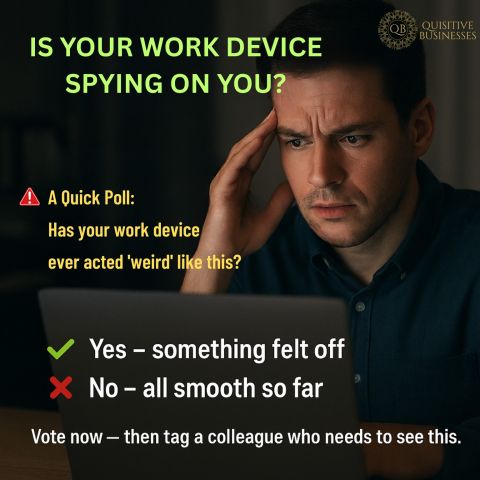
💬 Have you seen any of these signs?
👇 Share your experience in the comments — let’s help others stay safe.
#CyberSafeSeries #MalwareAlert #DeviceSecurity #InfoSec #NOC #SOC #QuisitiveSecure #TrustButVerify 💻🔍🚨


.png)
.png)
.png)
.png)
.png)